
Cave Casualties Loot Sources and Container Searches
Find supplies in cave containers, abandoned backpacks, Supply Drops, player bodies and loose ground items. Each source has its own interaction for collecting loot.
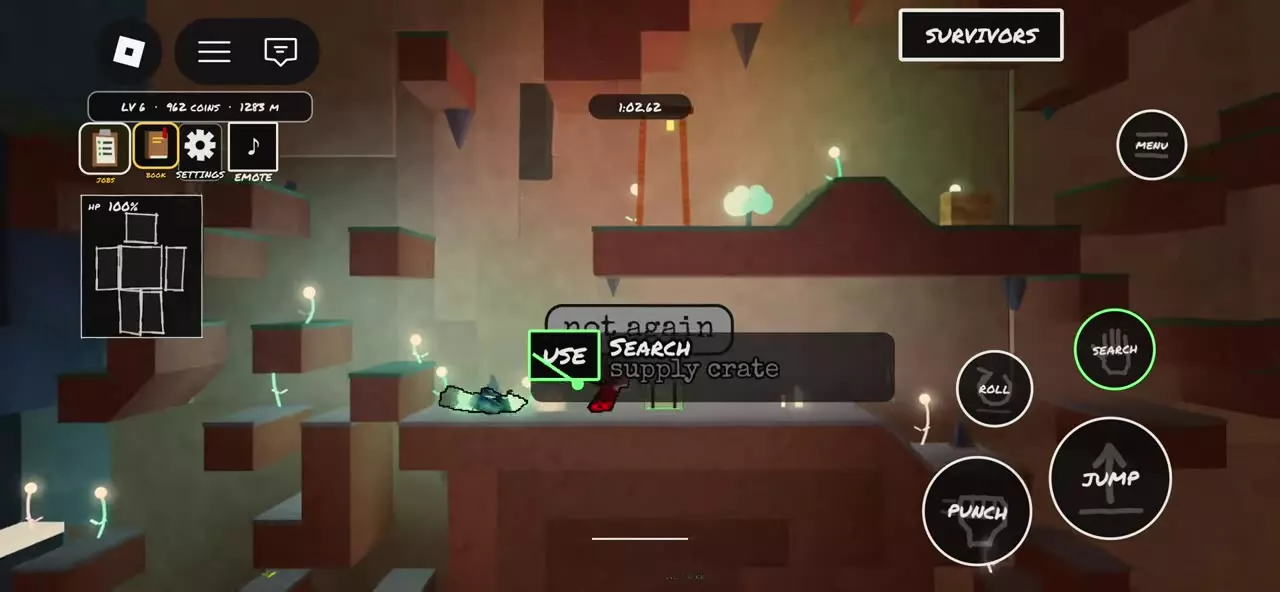
Approach the source and follow its prompt: SEARCH for crates, lockers and bodies; SEARCH THE PACK for old backpacks; OPEN for Supply Drops; or PICK UP for loose items. Complete any progress bar, choose individual items or TAKE ALL when a list opens, and check your hotbar. Attack breakable crates, then collect the released items.
Supply Sources
Supply Crates and Medical Crates provide searchable supplies during exploration. Check lockers beside travelling merchants, abandoned backpacks along your route and red or orange Supply Drops marked by a nearby landing message and red light. Player bodies have searchable inventories, while loose items use PICK UP.
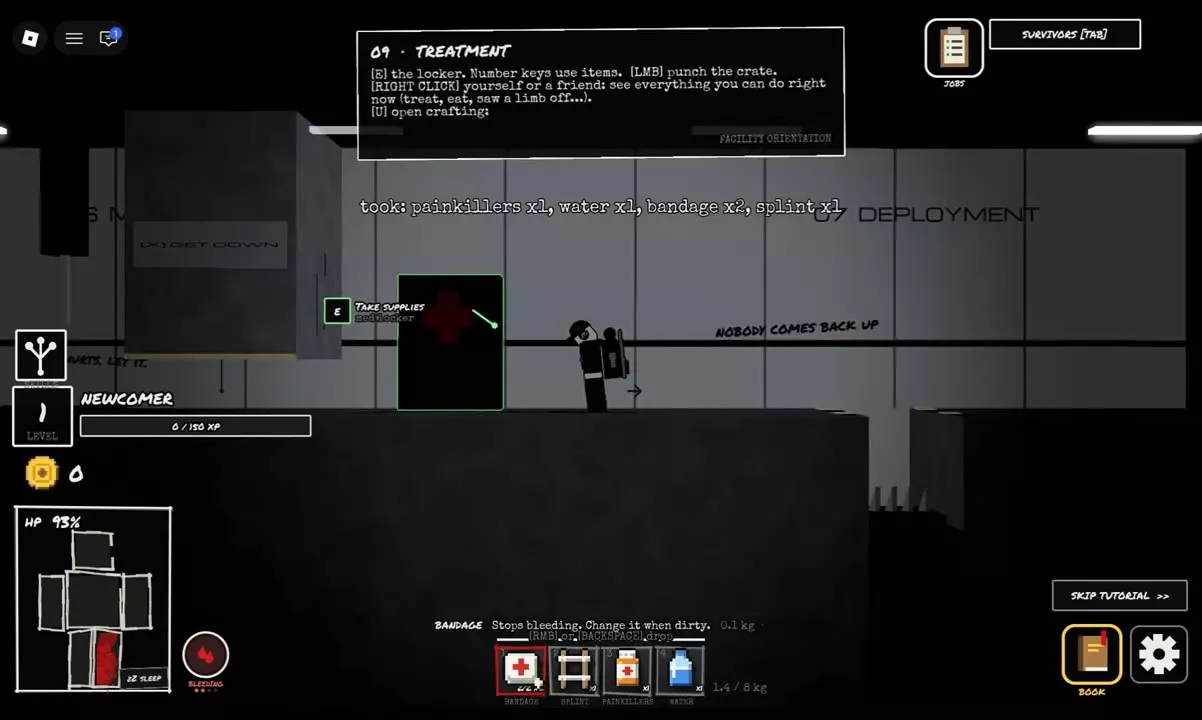
The training medical cabinet provides supplies during orientation. Breakable crates release loot when attacked. Read the interaction prompt to choose the correct action for the source in front of you.
Loot Source Directory
Compare each source's interaction and location. Open a source's name for its contents examples, item relationships and specific controls.
Find searchable containers, Supply Drops and other loot sources.
8 objects
|
|
Supply crate | SEARCH | Caves and starting area |
|---|---|---|---|
|
A searchable supply container found in the caves and near the expedition's starting area.
TipsComplete SEARCH and check the result before moving on. An empty crate gives no items. |
|||
|
|
Supply drop | OPEN | Cave platforms |
|
A supply box that lands nearby with a heavy-object landing message and red light. Open it to obtain its contents.
TipsAfter the landing, follow the red light to the box. Complete OPEN; restart the interaction if its progress resets. |
|||
|
|
Medical crate | SEARCH | Caves |
|
A searchable container that provides medical supplies.
|
|||
|
|
Abandoned backpack | SEARCH THE PACK | Caves |
|
An abandoned backpack described as belonging to someone who did not survive. Search it to choose items from its contents.
TipsUse individual item entries when you want selected supplies; TAKE ALL collects the remaining contents. |
|||
|
|
Locker | SEARCH | Travelling merchant facilities |
|
A searchable locker inside travelling merchant facilities.
TipsUse SEARCH on the locker beside the trading area; the merchant's TRADE prompt opens a separate menu. |
|||
|
|
Training supply cabinet | E Desktop controls | Training area |
|
A cabinet in the training area that provides medical supplies and Water.
|
|||
|
|
Breakable crate | Attack | Cave platforms |
|
A crate that releases loot when smashed.
TipsAttack the crate until it breaks, then use PICK UP on the released loot. |
|||
|
|
— | — | — |
|
An interactable player's body that can be searched for items or carried to another position.
TipsSEARCH works directly beside the body. Use CARRY THE BODY and PUT THE BODY DOWN when you need to move it first. |
|||
Search Crates, Lockers and Backpacks
Search crates and lockers
- Move close enough for the container's SEARCH prompt to appear.
- Press E on desktop when prompted, or use the SEARCH button on touch controls.
- Continue the interaction until the progress bar finishes.
- Read the result and check your hotbar for acquired items.
Use this process for Supply Crates, Medical Crates and searchable lockers. At a travelling merchant's facility, the locker's SEARCH prompt is separate from the merchant's TRADE menu.
An empty result gives no items. The message “empty, someone got here first” means the container has already been looted. An empty Supply Crate search can still award XP; one such search awarded 10 XP.
Choose items from an old backpack
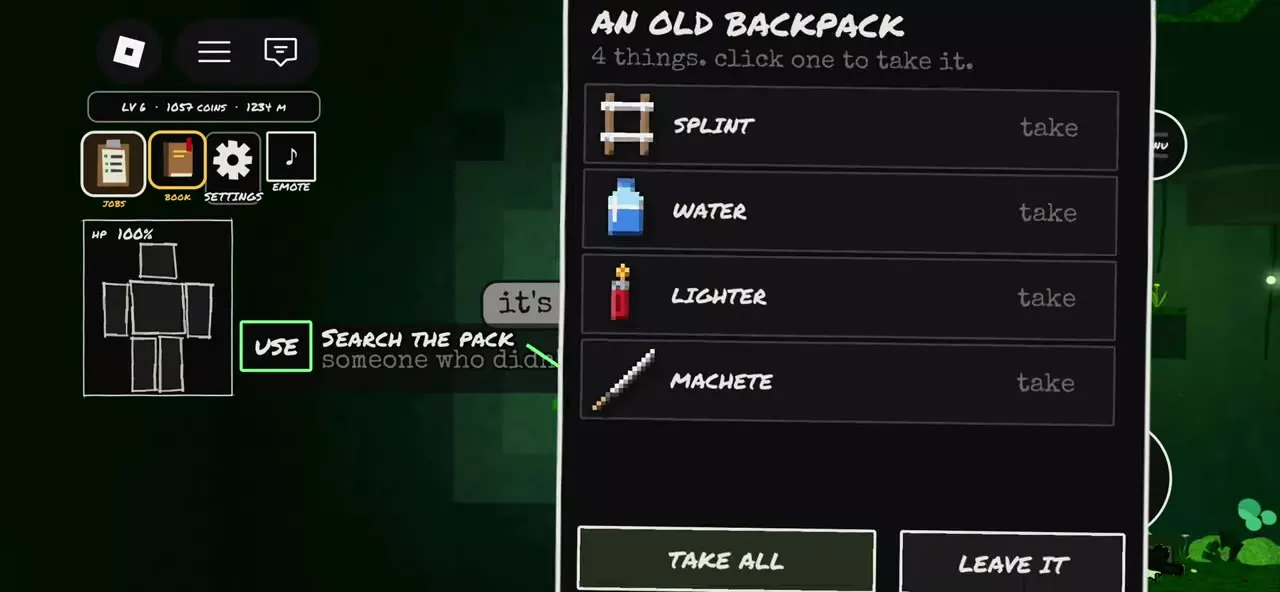
Approach an abandoned backpack and activate SEARCH THE PACK; use E on desktop when prompted. The An Old Backpack panel opens with its remaining contents.
- Select individual entries to take only the supplies you want.
- Choose TAKE ALL to collect all remaining contents.
- Choose LEAVE IT to close the list.
Individual selection lets you leave unwanted items behind. For example, you can take Ration and Antibiotics while leaving Empty Bottle and Glowstick in the same backpack. Taken items enter your hotbar. The message “nothing left on them” means the pack is empty, including after you take everything.
Take training supplies
In the training area, approach the medical cabinet and press E to take supplies. A training bundle contains 2 Bandages, 1 Splint, 1 Painkillers item and 1 Water.
Supply Drops and Ground Pickups
Open a Supply Drop
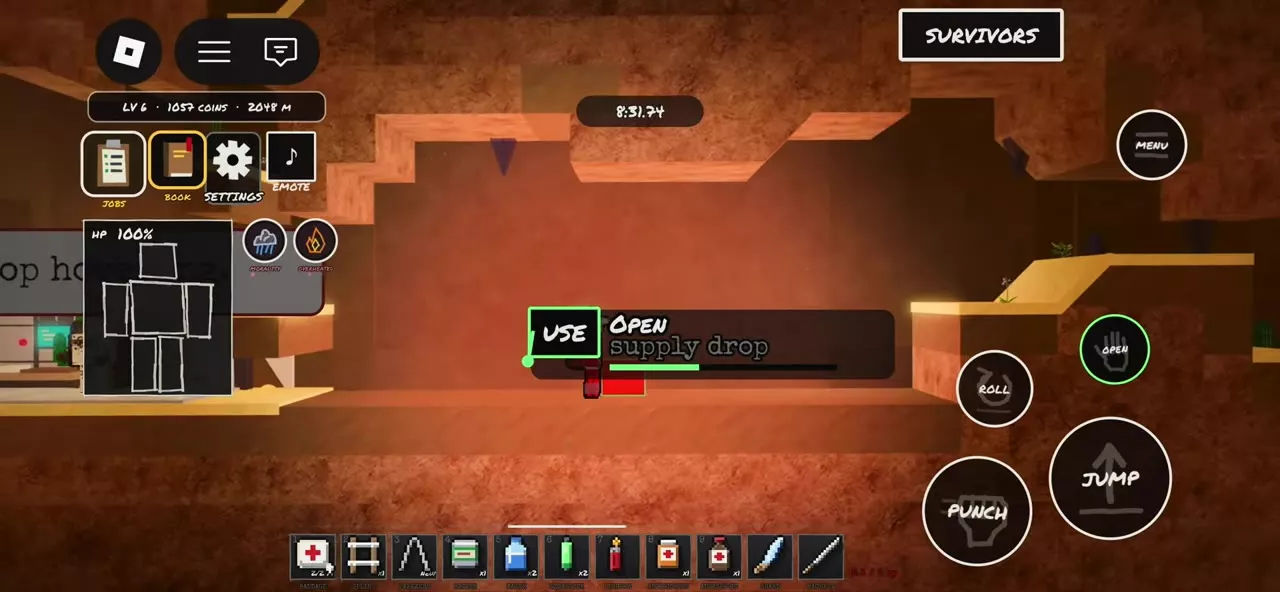
When a nearby heavy-object landing message appears, follow the red light to the red or orange box. Approach it and activate OPEN—E on desktop or the OPEN button on touch controls. Stay within interaction range and finish the progress bar. If progress resets, activate OPEN again and complete it. Check the found-item message and hotbar after opening.
Collect loose items
- Move beside the item you want.
- Read the item name in the PICK UP prompt.
- Activate PICK UP and complete its progress bar.
- Check your hotbar for the acquired item.
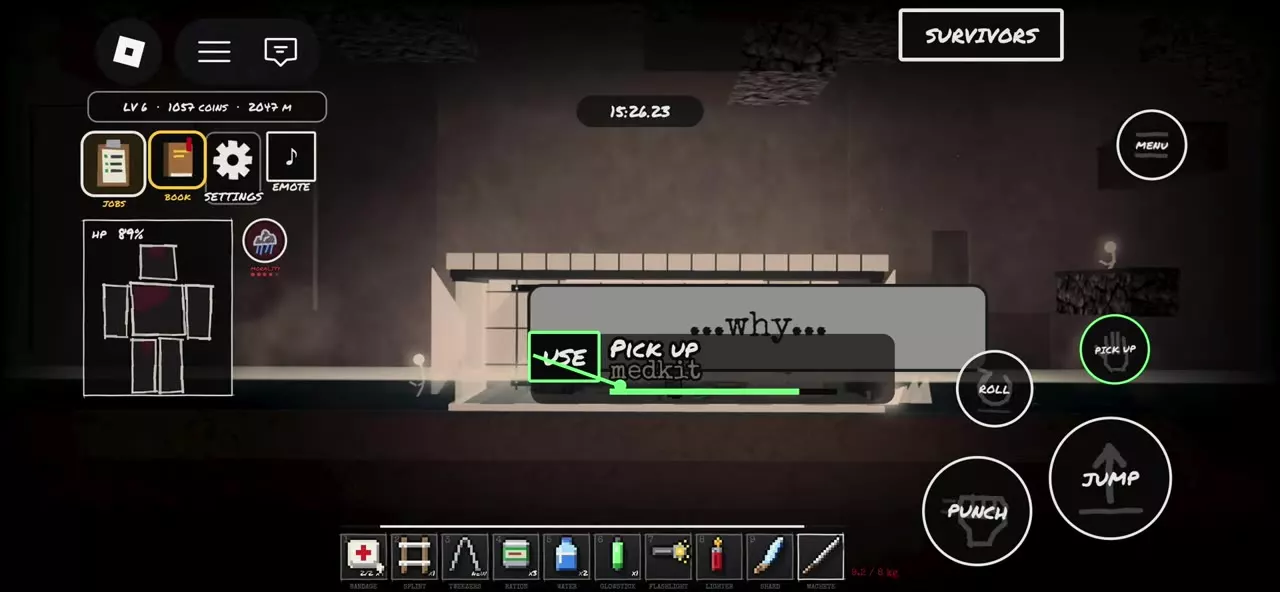
When several items lie together, reposition until the prompt names your intended item. After collecting it, the prompt can switch to another nearby item—for example, from Medkit to Lighter. Check the name again before starting the next pickup.
Bodies and Breakable Crates
Search or move a player's body
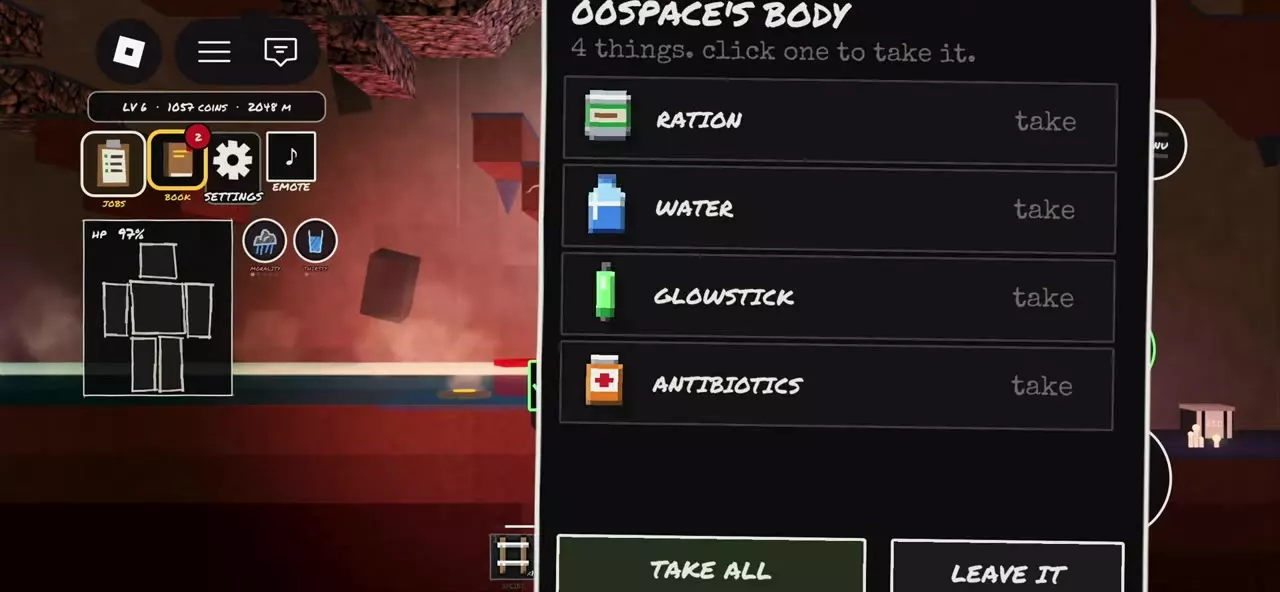
Approach an interactable body and select SEARCH to open its inventory. Take individual entries, choose TAKE ALL for the available contents, or select LEAVE IT to close the inventory. Check your hotbar after taking items.
Carrying is optional: SEARCH works directly beside the body. To move it first, choose CARRY THE BODY, move to the desired position, then select PUT THE BODY DOWN. Use SEARCH after putting it down.
Smash a breakable crate
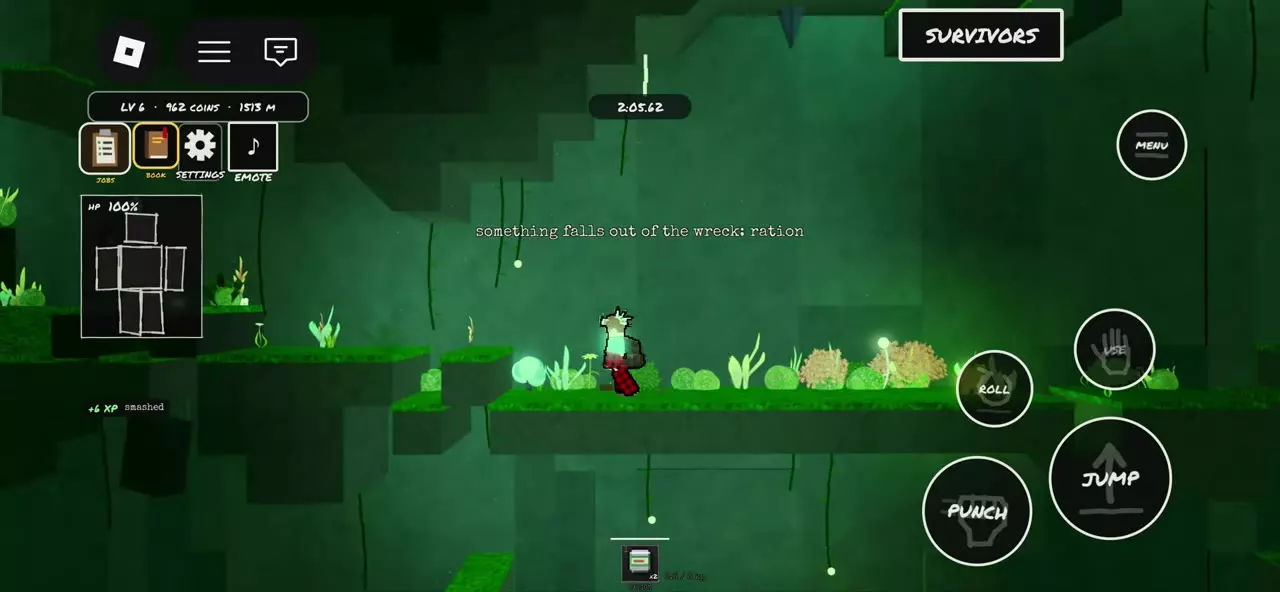
Attack a breakable crate until it breaks. On desktop, use the left mouse button to attack, as instructed during training. Check the wreckage, then use PICK UP on the released item to collect it. One smashed crate released a Ration and awarded 6 XP.
Supplies, Inventory and Contracts
- Medical supplies and prosthetics: choose supplies for bleeding, infection, pain, fractures and missing limbs.
- Food and water: compare food, drinks and bottles by their uses.
- Tools and light sources: choose digging, rope and lighting equipment.
- Inventory, stash and packing: organize your hotbar and manage carried supplies.
- Contracts and reward claims: track search objectives and collect completed rewards. With the “search 3 crates” job active, search three crates, then open JOBS to claim its reward.