Cave Casualties Controls and Movement
Use the right input to climb ledges, cross narrow passages and soften landings. Cave Casualties changes action prompts with your position, posture and held item.
On PC, use A/D to walk, Shift to run and Space to jump. Hold toward a ledge to catch it, then hold Space to pull up. Hold Space between close walls to climb a shaft. Press Q just before landing to reduce fall damage; C is the walking dodge input. On mobile, use the left stick and contextual buttons such as JUMP, CLIMB and ROLL. Open MENU for personal actions, BODY, crafting, the map and your bag.
PC and Mobile Controls
PC inputs
| Action | Input | Context |
|---|---|---|
| Walk | A / D | Left / right |
| Run | Shift | Movement |
| Jump | Space | Grounded |
| Dodge roll | C | Walking |
| Landing roll | Q | Just before touchdown |
| Interact | E | Object prompt |
| Select or use an item | Number keys | Hotbar |
| Open BODY | H | Injury inspection |
| Open crafting | U | Crafting |
| Attack boxes | Left-click | Beside a box |
| Open available actions | Right-click | Yourself or a friend |
| Put away a held item | Q | PUT AWAY prompt |
C's walking dodge, Q's landing roll and an item's Q shortcut belong to different contexts. Read the action label beside the current prompt.
Mobile inputs
Move with the left stick. Use the on-screen ROLL, USE, PUNCH and JUMP buttons for their labeled actions. USE changes to SEARCH beside a searchable object, and JUMP changes to CLIMB when you catch a ledge.
Menu and Personal Actions
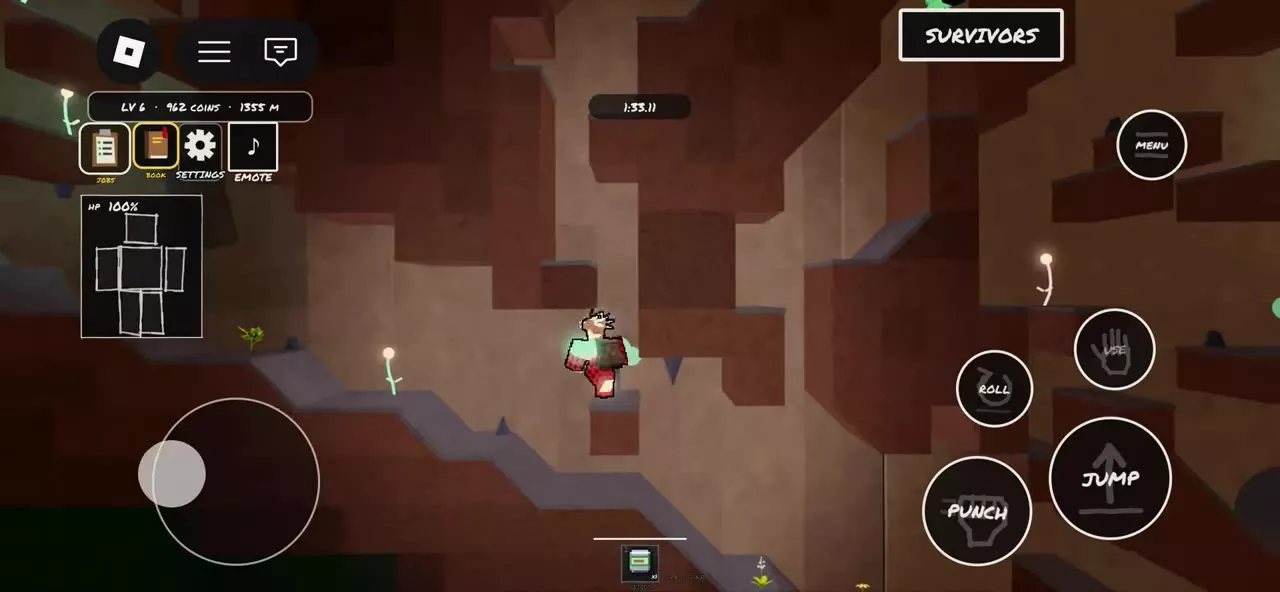
Open MENU and select the function you need.
| Entry | Function |
|---|---|
| YOU | Food, drink and self-care |
| SKILLS | Spend skill points |
| BODY | Inspect injuries |
| CRAFT | Make items |
| MAP | View visited places |
| BAG | Organize carried items |
| SLEEP | Lie down and rest |
| RUN | Toggle running |
| LIE DOWN | Crawl on your belly |
| PUT AWAY | Empty your hands |
| GO LIMP | Enter a ragdoll state |
Personal and equipment actions
Choose YOU, or right-click yourself on PC, to open available personal actions. These include Look yourself over, Craft something [U], Lie down flat, Sit down and Sleep here. Right-click a friend to open the actions available for that player.
Your equipment, supplies and condition determine the other actions in YOU:
- Care: change dirty dressings, open a Medkit, take Antibiotics or select a limb to saw off.
- Food and water: eat a cold Ration, drink Water, or heat a Ration and boil Water over a Lighter.
- Equipment: put on Iron Clothes, warm up with a Lighter, switch on a Flashlight, hold the lit Flashlight in your teeth or put away a held item.
SURVIVORS panel
SURVIVORS displays the survivor count and the NAME, TITLE, LVL, DEPTH and COINS fields. Click the panel to hide it.
Ledges, Wall Jumps and Shafts
Grab a ledge and pull up
- Move toward a reachable edge. Jump if the platform is above you.
- Keep holding the direction toward the edge while jumping. On mobile, push the stick toward the wall to catch it.
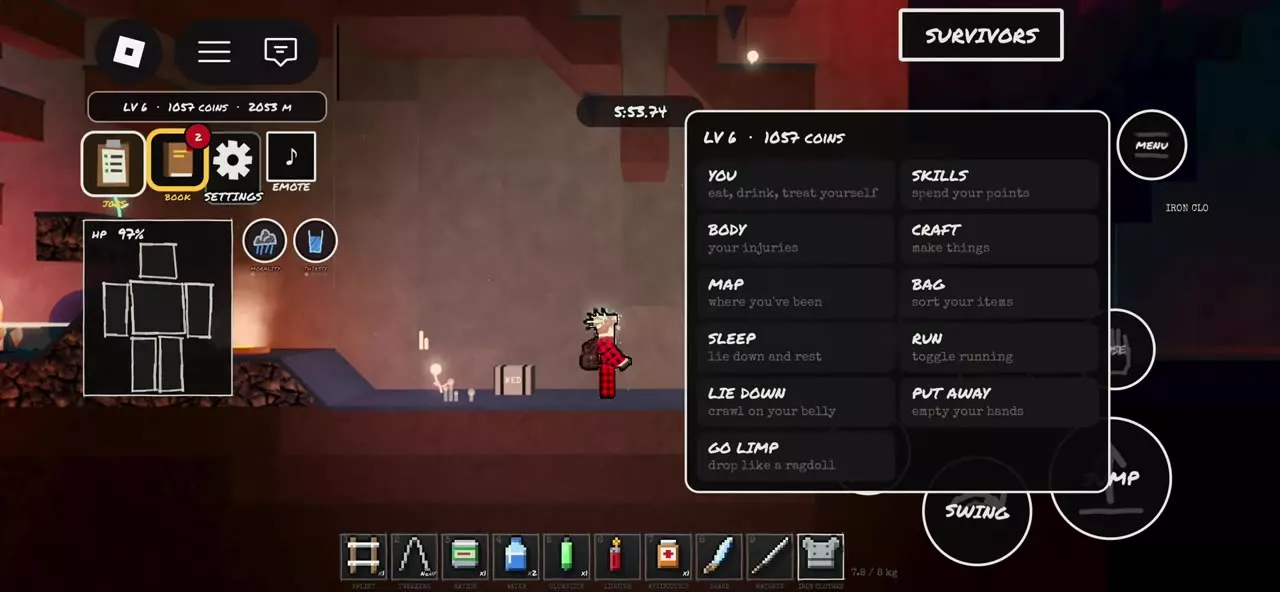
- Once hanging, hold Space on PC or CLIMB on mobile to pull yourself onto the platform.
Press S on PC or use LET GO on mobile to release the edge and drop. Keep holding CLIMB throughout the mobile pull-up: releasing the hold drops you.
Kick away from a wall
On PC, press Space beside the wall to kick away. On mobile, push the stick away from the wall and tap JUMP. Use the same away-from-the-edge stick input and JUMP to kick away from a caught ledge.
Climb between two walls
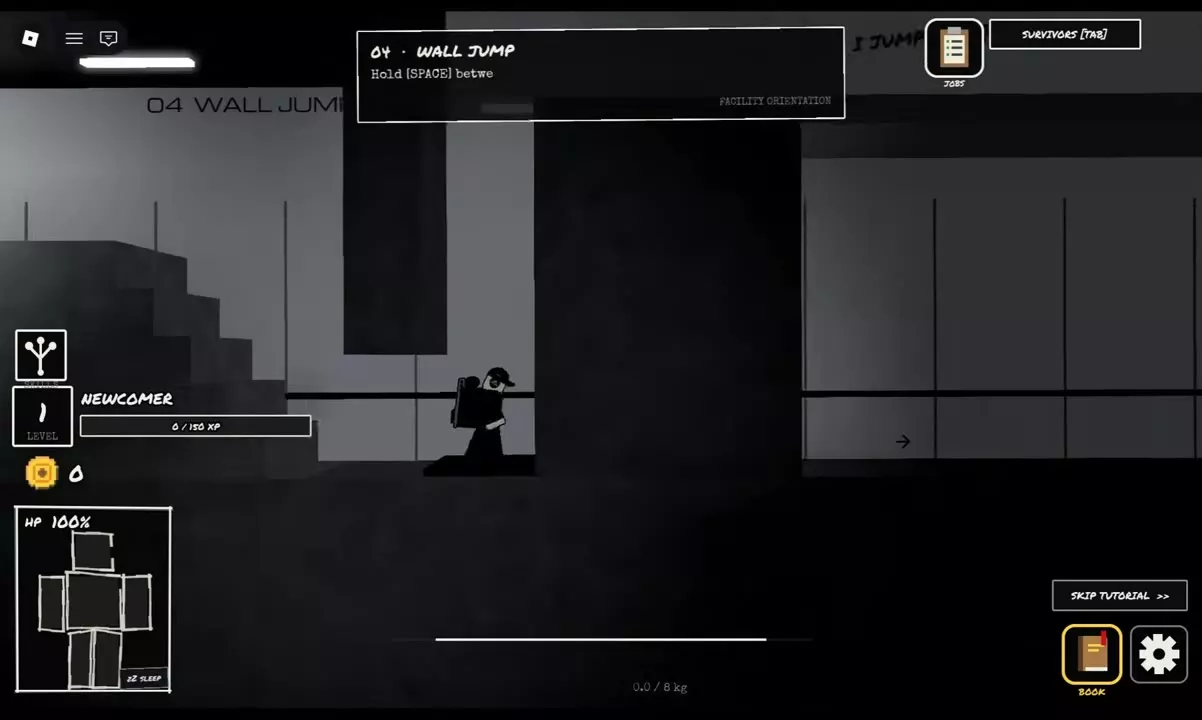
Enter the narrow space between two close walls, then hold Space on PC or JUMP on mobile to brace upward. At the top, hold toward the exit ledge to catch it. In Orientation's right-hand exit, hold D.
When a wall-climb prompt specifically displays W, press W beside that wall to climb upward. For a hanging ledge, use the pull-up input above.
Landing Rolls, Low Gaps and Boxes
Reduce fall damage with a landing roll
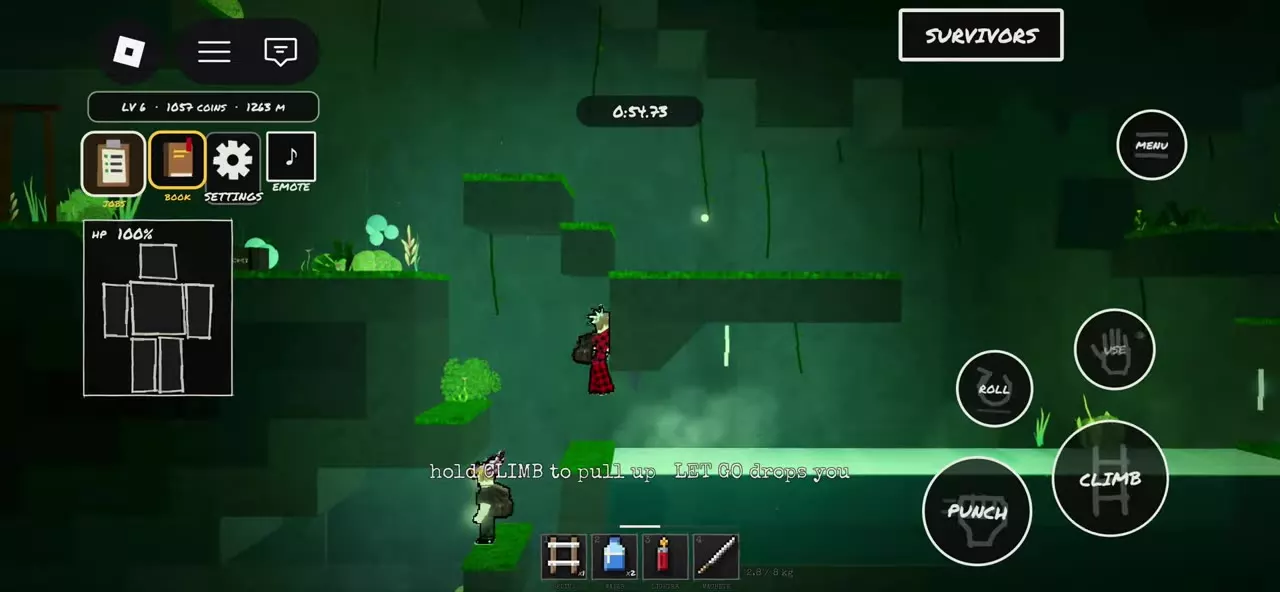
Press Q on PC or ROLL on mobile just before touching the ground. A correctly timed roll reduces fall damage. Missing the timing exposes you to bone injuries and loss of walking ability.
Crawl through a low passage
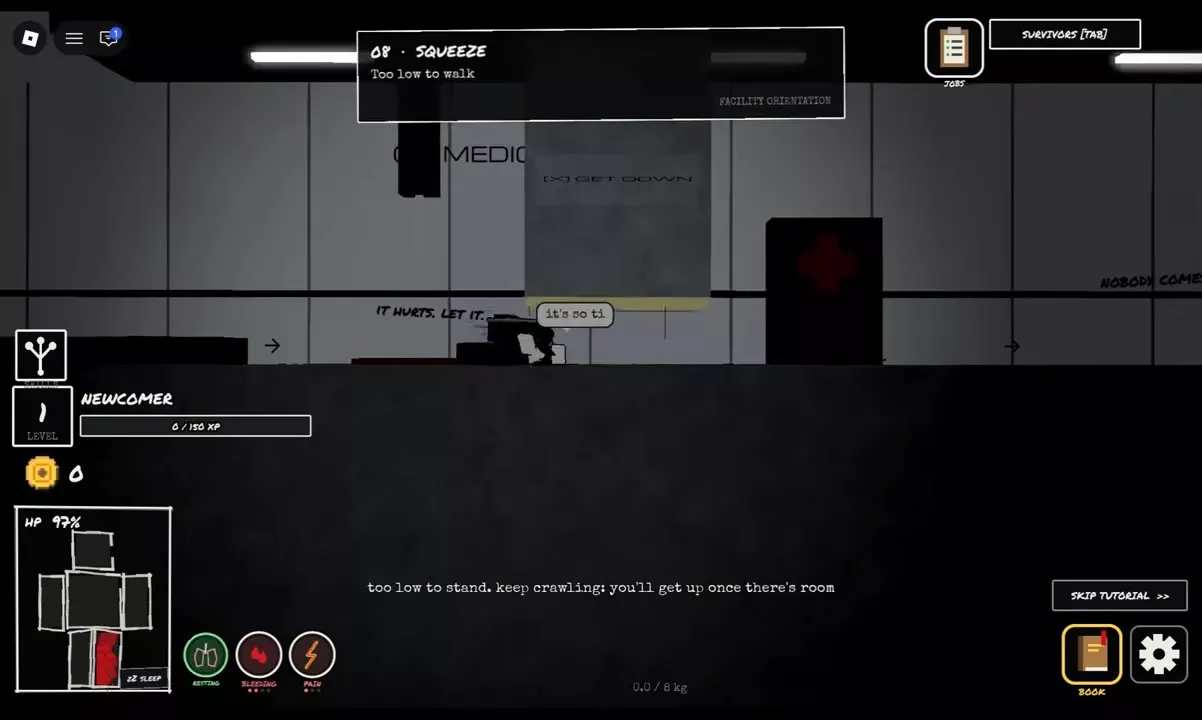
- At the entrance, use the displayed crouch or roll input, or choose MENU → LIE DOWN.
- Move through the gap while lying down.
- Continue into an area with enough headroom. Your character stands automatically when there is room.
Use C when the PC gap prompt displays C, or Q when SQUEEZE displays Q. On mobile, use ROLL to duck into the gap. While crawling, the button changes to GET UP, but a low ceiling still prevents standing.
The ON YOUR BELLY prompt also allows Q to roll while lying at an edge.
Use a box to reach a high ledge
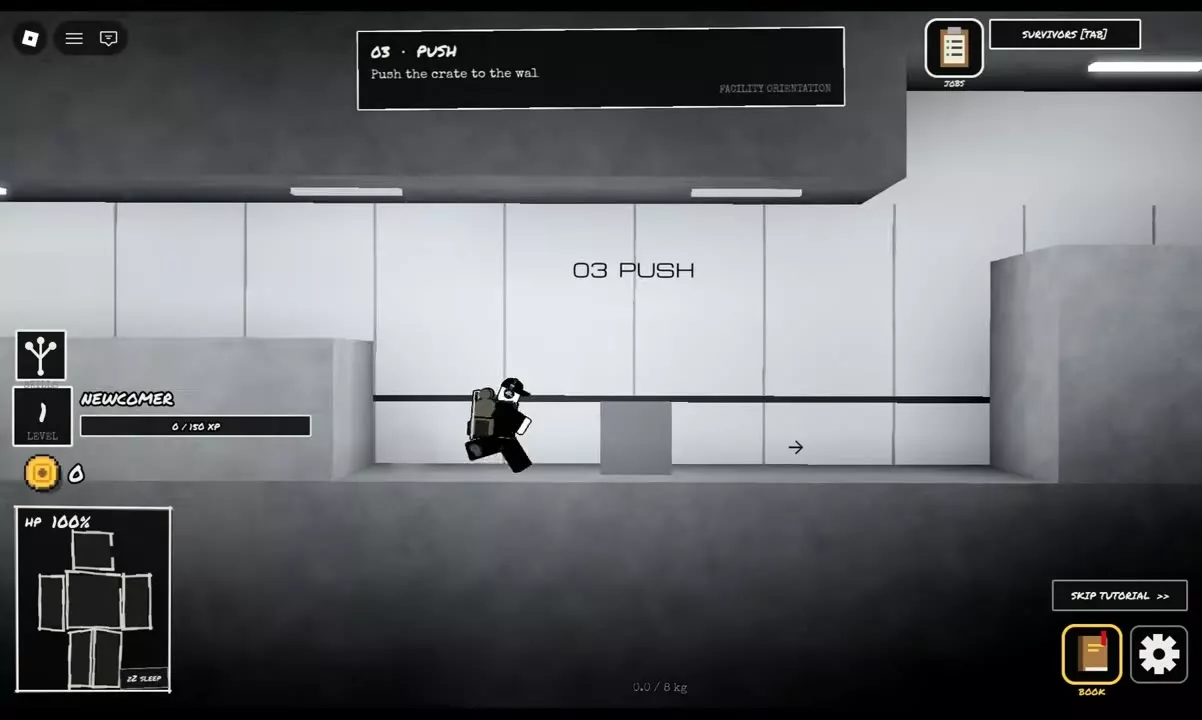
- Stand beside the movable box and walk into it to push it toward the wall.
- Climb onto the box to raise your starting position.
- Jump toward the higher ledge while holding toward it. For Orientation's wall on the right, press Space and hold D to catch the edge.
Orientation and Settings
Complete, skip or replay Orientation
Orientation takes you through MOVE, CLIMB, PUSH and WALL JUMP, followed by landing-roll, low-clearance and medical exercises.
At MEDICAL, step onto the red pad. Hover over the status icons beside HP to inspect the problem, collect supplies from the medical cabinet with E, then open BODY and select RIGHT LEG. Choose BANDAGE, drag the roll clockwise and finish with TIE IT OFF. Securing the dressing clears the leg's bleeding icon. Completing the training displays ORIENTATION COMPLETE before the descent sequence.
Select SKIP TUTORIAL to skip training. To repeat it, return to the lobby and choose SETTINGS → REPLAY TUTORIAL. Replay is restricted to the lobby.
Audio settings
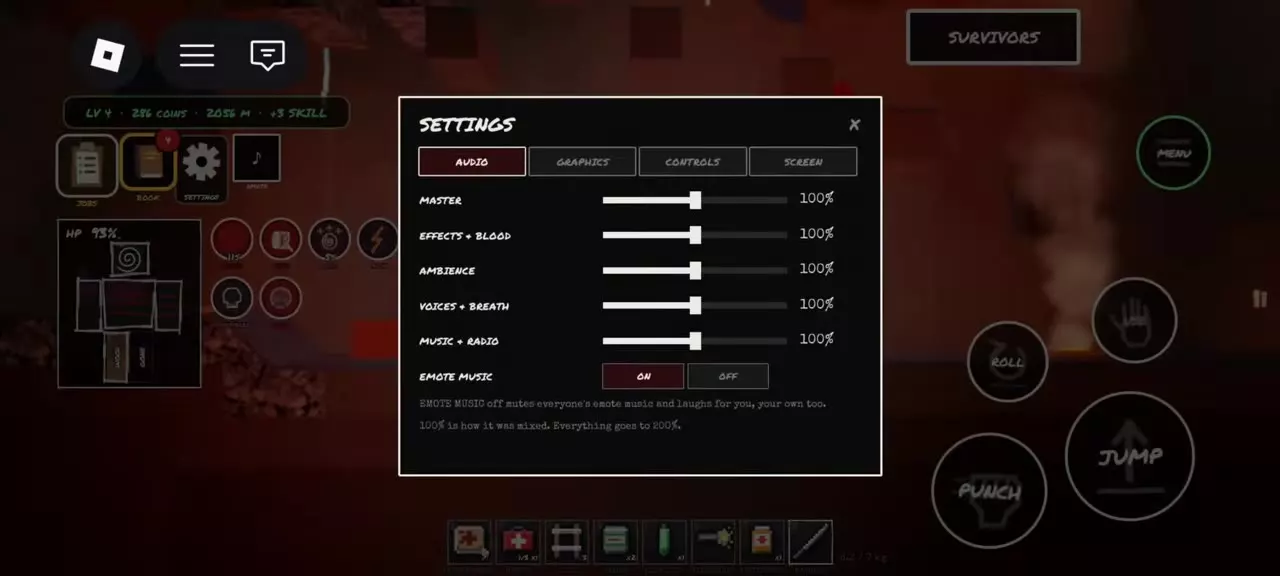
Open SETTINGS → AUDIO to adjust these volume categories:
- MASTER
- EFFECTS + BLOOD
- AMBIENCE
- VOICES + BREATH
- MUSIC + RADIO
EMOTE MUSIC has a separate on/off toggle. Turning it off mutes emote music and laughs for you, including your own.
Graphics settings
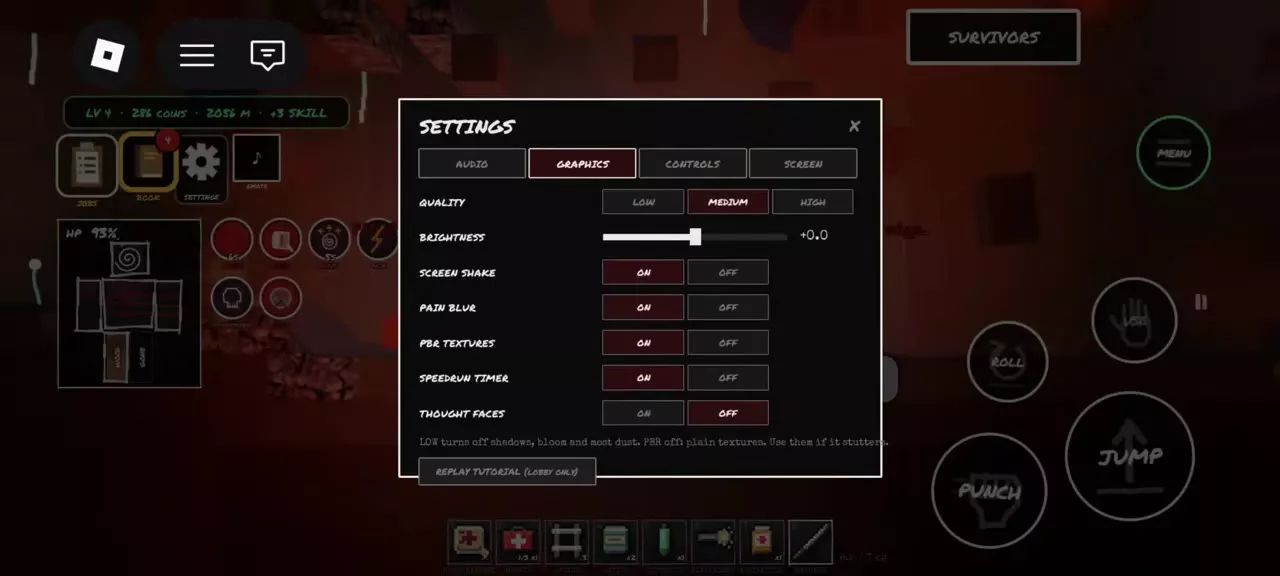
Open SETTINGS → GRAPHICS for QUALITY, BRIGHTNESS and the visual toggles.
| Setting | Options |
|---|---|
| QUALITY | LOW / MEDIUM / HIGH |
| BRIGHTNESS | Slider |
| SCREEN SHAKE | ON / OFF |
| PAIN BLUR | ON / OFF |
| PBR TEXTURES | ON / OFF |
| SPEEDRUN TIMER | ON / OFF |
| THOUGHT FACES | ON / OFF |
LOW disables shadows, bloom and most dust. Turning PBR TEXTURES off uses plain textures. Use these options if the game stutters.
SETTINGS also includes CONTROLS and SCREEN tabs.
Movement Limits and Context Prompts
Use the current prompt to identify the available action. Position changes climbing and interaction controls; posture and held items change action buttons.
- A reach that falls short: keep directional input toward the ledge throughout the jump so you can catch it.
- A low tunnel: crawl toward more headroom when GET UP is blocked by the ceiling.
- A changed button label: SEARCH identifies a searchable object, CLIMB identifies a ledge pull-up, and an item's PUT AWAY prompt identifies the action for your held equipment.
Read the action name as well as the key. A matching letter in another situation does not give that action the same effect.
Inventory, Ropes and the Map
- Hotbar order: BAG organizes carried items. Use Inventory, Stash and Packing to arrange shortcuts and manage departure supplies.
- Rope traversal: Lasso connections have their own anchoring and movement controls. Find the Lasso entry in Tools and Light Sources.
- Navigation: MAP displays places you have visited. Use Map Symbols and Navigation to read markers and choose a route.
- Treatment: H or MENU → BODY opens injury inspection. Follow Healing and Injury Treatment for wound care and treatment interactions.